
Introduction
In this article, we’ll run through how you can enable users to sign into their program with their email address and password. When this is enabled, users will be asked to create a password during the registration process, allowing them to sign in to the program using their chosen email address (username) and password.
How To Enable Username and Password
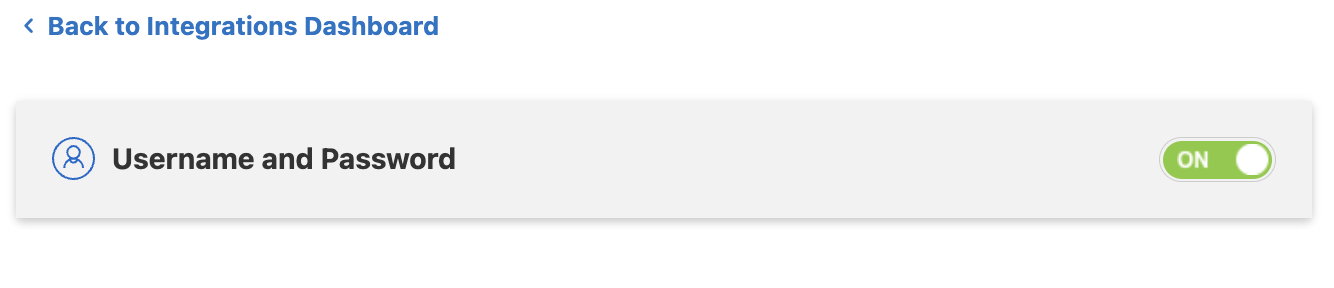
To enable this feature, log into Reward Manager, click on the Integrations tab on the left, and under the Explore tab you will see Username and password.
If you don’t have access, please speak with your Client Success Manager or a member of the Client Support Team who will assign your permissions.
Select the integration and turn it On using the toggle button.
 How Secure Is It To Enable Username and Password?
As a short answer – extremely. All passwords are secured through hashing and are never shared with the member via any method of communication.
Other Options Available To Enhance the Security of Using Local Credentials
When setting up the integration, there are several options to enhance the security aspects of the locally held credentials. These are further explained below and can be found under Security in Reward Manager.
If you don’t have access to this, please speak with your Client Success Manager or a member of the Client Support Team who will assign your permissions.
Password Requirements
All passwords must contain at least one uppercase, one lowercase, and one digit or special character. This increases the complexity of the passwords and reduces the risk of them being susceptible to attacks such as Dictionary attacks.
Minimum Password Length
You can select a minimum password length for all users, which must be at least 12 characters in length.
Prevent Re-use
If selected by an admin, members cannot re-use any of their last seven passwords.
Periodic Refresh
As a default setting, members will be prompted to change their passwords every 120 days. Admins can customize the refresh period in the range 30 - 120 days. (Or other BU specific period)
Send Password Reset Instructions
Search for members and send a password reset instructions email.
How Members Can Recover Their Forgotten Passwords
If an employee has lost or forgotten their password, they can use the Account Recovery section to recover their account. The Account Recovery section can be found on the main landing page or by typing /recover after your program’s URL. e.g. https://[YOUR_PROGRAM_URL]/recover
Comments
0 comments
Please sign in to leave a comment.